My Data
My Data manages data files, allowing you to upload, preview and download data. The platform provides public datasets ProgAssign.csv, iris.csv and wine.csv for all users. You can also upload your own data files.
TIP
The ProgAssign.csv dataset contains 514 student records, including grades for five courses and student programme. Please note that the data in the ProgAssign.csv dataset content is constructed by the LCDA team and does not represent real-world data.
The iris.csv dataset contains information on 150 iris flowers, including sepal length, sepal width, petal length, petal width, and variety.
The wine.csv dataset contains information on 178 wine samples, including alcohol, malic acid, ash, alcalinity of ash, magnesium, total phenols, flavanoids, nonflavanoid phenols, proanthocyanins, color intensity, hue, OD280/OD315 of diluted wines, and proline.
The iris.csv and wine.csv datasets are sourced from the UCI Machine Learning Repository.
Upload File
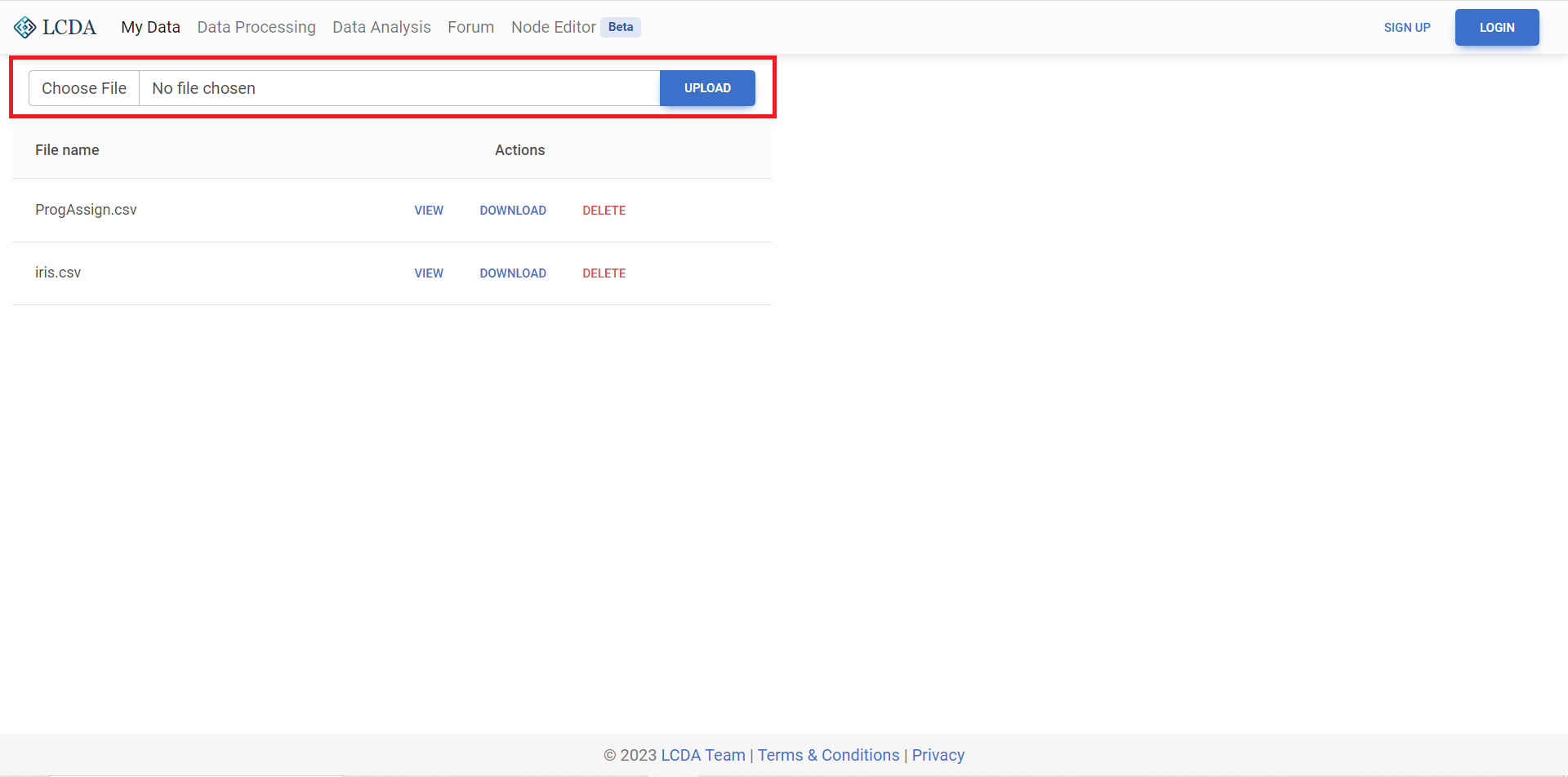
Once logged in, click Choose File and select the file you need to upload, or drag the file from the folder into the Select File option box. Click Upload after choosing the file, then you can see the files you have uploaded in the file list below.
- Upload one file once
- Support file format of
.xlsx,.xlsand.csv - File size cannot exceed 3MB
File Actions
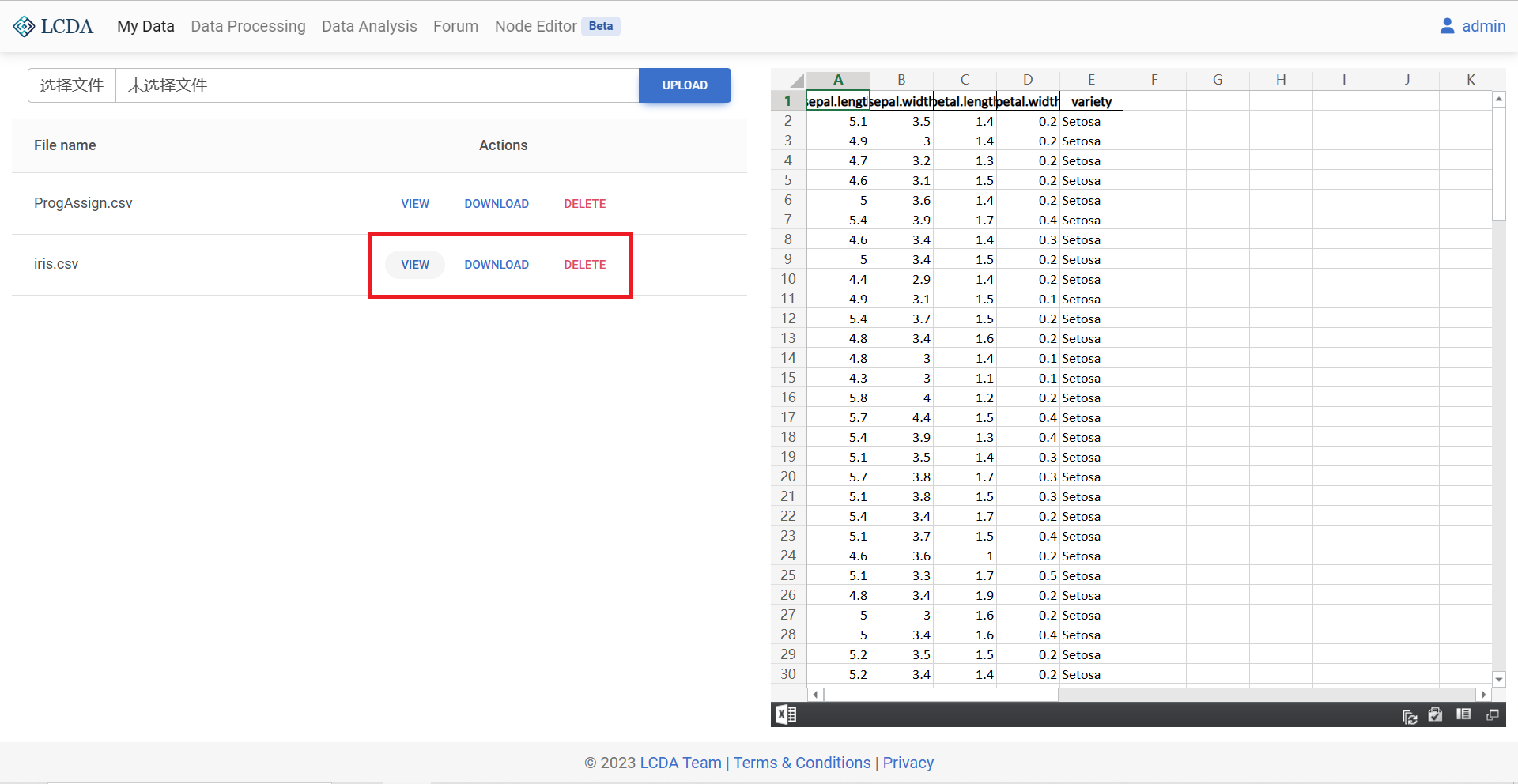
In the file list, you can preview, download and delete files.
- View: You can view any file in the Excel view on the right
- Download: You can download any file locally
- Delete: You can delete only files uploaded or created by yourself
TIP
When you use Data Processing, processed files will be created automatically and added to the file list . If you try to delete a file involved in a Data Processing project, you will receive a warning. You will then be able to decide whether or not to proceed with the deletion operation.